

Products
- TOP
- Products
- DeviceXPlorer OPC Server
- SCADA Guide
- SCADA Settings for Wonderware InTouch (via FSGateway)
SCADA Settings for Wonderware InTouch (via FSGateway)
This page explains how to to connect our OPC Server with Wonderware InTouch using FactorySuite Gateway. FS Gateway was released in 2004 as new gateway software to replace OPCLink. It is a utility that converts four protocols (OPC/DDE/SuiteLink/MX) mutually, and operates as a universal protocol converter. We are unable to answer questions concerning the SCADA settings, so please make inquiries to the SCADA vendor or sales outlet directly.
Installing FS Gateway
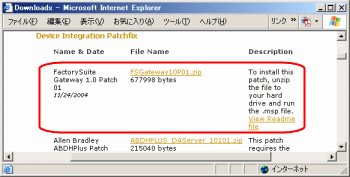
You can install FS gateway from the Device Integration disc, if you have the setup disc of FactorySuite. You can also install it by downloading the FS Gateway installer from the Wonderware website.
Launching FS Gateway
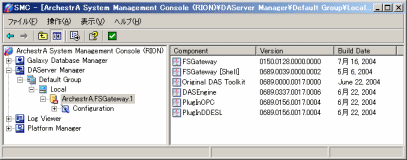
Select Program > Wonderware > System Management Console from the Start menu and launch SMC.
When you expand the DAServer Manager, ArchestrA.FSGateway is displayed.
Defining OPC Server
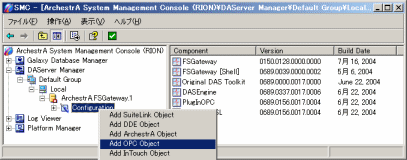
Right-click Configuration, and a pop-up menu is displayed. Click Add OPC Object.
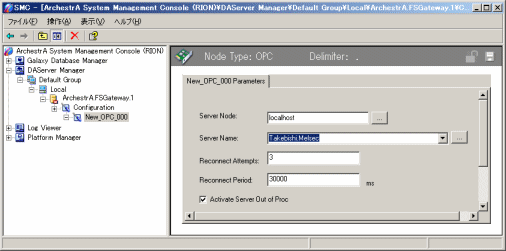
[Server Node]: Specify the node name that the OPC Server operates on. When it operates on same PC, specify "localhost".
[Server Name]: Specify the Prog.ID of the OPC Server. In case of our MELSEC OPC Server, specify "Takebishi.Dxp".
* Other items are maintained at their default.
Defining OPC Group
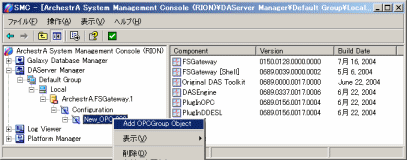
Right-click the generated OPC Server definition (In this case, "New_OPC_000"), and a pop-up menu is displayed.
Select Add OPCGroup Object.
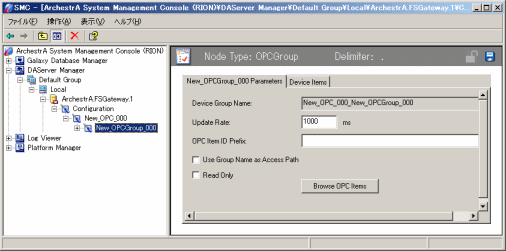
Specify the polling cycle of the PLC into Update Rate.
* The topic name for accessing the DDE interface is [Port Name + "_" + Group Name].
* Other items are maintained at their default.
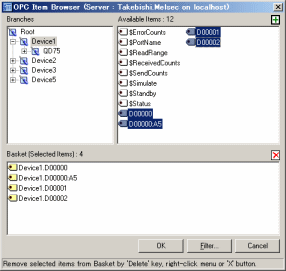
Click Browse OPC Item to view defined OPC Servers in a dialog box.
Drag the desired tags to the Basket to register them.
Defining InTouch Access Name
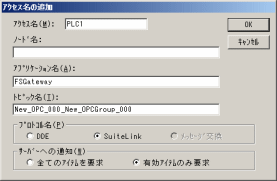
Select Access Name from the InTouch System menu. Click Addition to open the displayed screen and define the Access Name of the OPC Server.
- [Access Name]: The cooresponding name defined in InTouch.
- [Application Name]: Input "FSGateway".
- [Topic Name]: Specify the topic name defined in SMC (In this case, "New_OPC_000_New_OPCGroup_000").
- [Protocol]: Select DDE or SuiteLink.
Defining InTouch Tag Name
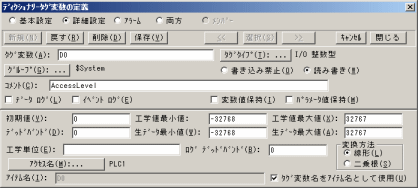
Specify the tag names to be accessed by FS Gateway from the InTouch application.
- [Tag Name]: Specify a tag name PLC Device Name/PLC Device Number.
- [Tag Type]: If a tag type is an integer, specify I/O Integer.
- [Access Name]: Specify an access name to connect to FS Gateway.
Running
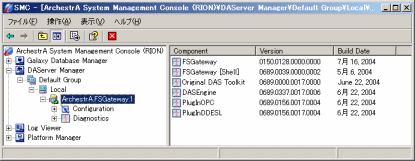
The pop-up menu is displayed when you right-click the ArchestrA.FSGateway.1 button in the DAServer manager.
Select Activate Server and activate FS Gateway.
Run InTouch to transfer OPC Server values to FS Gateway.
Notes
*If FS Gateway is specified as "Out Process" from the OPC Client, it will connect through DCOM.
If OPC Server has already been launched, the "already started" message will be shown.
In this case, select Interactive User for the OPC Server DCOM setting.
*When accessing from VB6.0 that cannot specify "Out Process" in the CoCreateInstance function, you cannot use OPC protocol and DDE/SuiteLink protocol at the same time.