

FAQ
- DeviceXPlorer
How to change the DataSource settings from an external application
2026.04.23
Overview
The DataSource settings of the DeviceXPlorer OPC Server (ports, devices, groups, and tags) are usually configured using the configuration tool.
However, by using the system tags of the SYSTEM device, it is also possible to change the configuration from an external application.
Applicable Products
DeviceXPlorer OPC Server v7.4.0.1 or later
Configuration Procedure
- It is recommended to perform the following operations after disconnecting the configuration tool from the runtime.
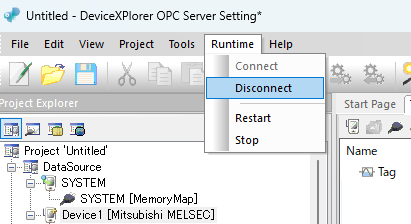
* System tags that store the execution results of configuration changes are provided ($xxxResult).
If the value is "0x0800 (hexadecimal)" or "2048 (decimal)", it indicates that the configuration tool and the runtime are connected.
* After completing the configuration change, if you want to reconnect, please load the setting from the runtime. - System tags are displayed by enabling "Display System Tags" on the "Options" tab in the device properties.
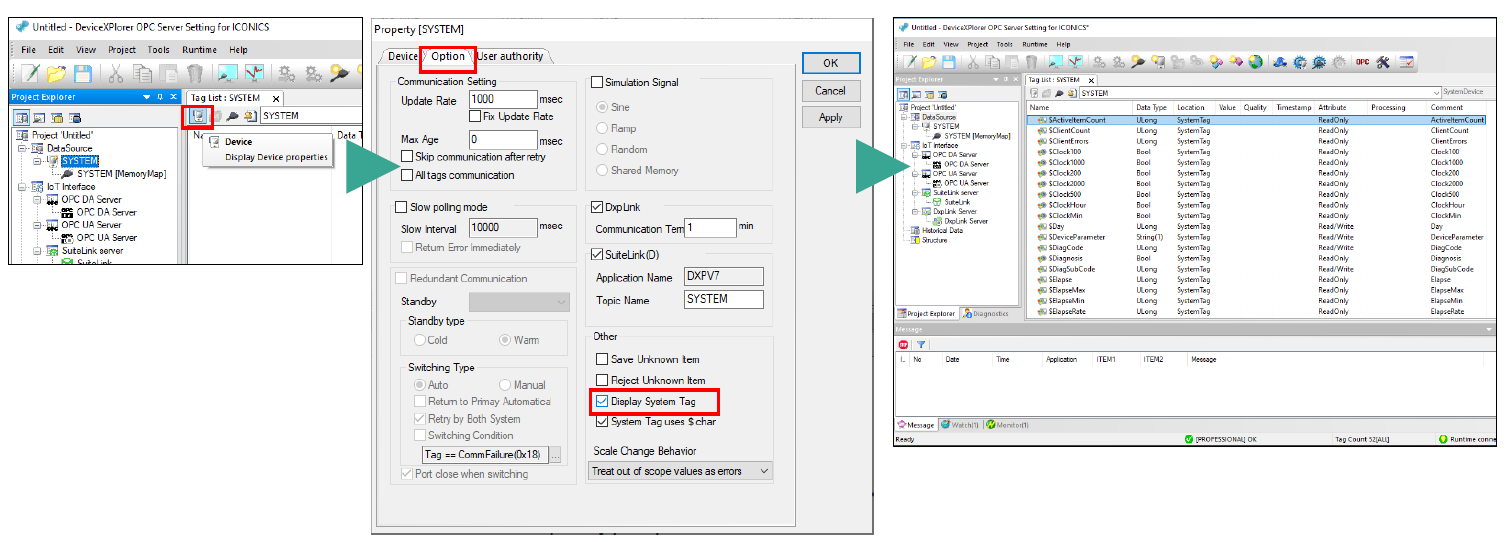
- From an external application, write the parameters to be added or modified to the corresponding system tags.
Example 1) Adding Settings Using CSV Format
Use SYSTEM.$ImportParameter.
For the parameters to be entered, please export the existing settings in CSV format as a sample and review them.
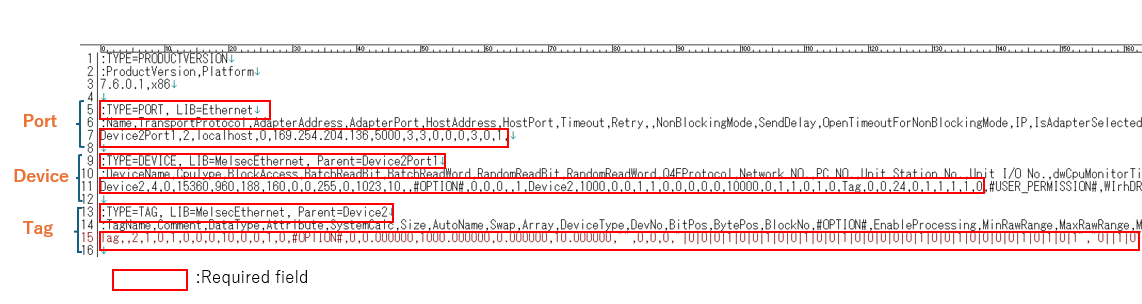
* Including comment lines (header lines) that start with a colon (:), even though they are not required, does not cause any problems.
- Before Change
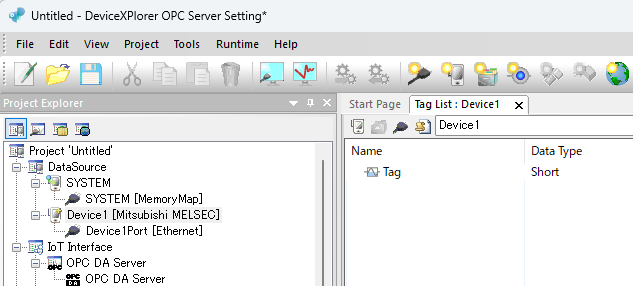
- Please write the parameters from an external application
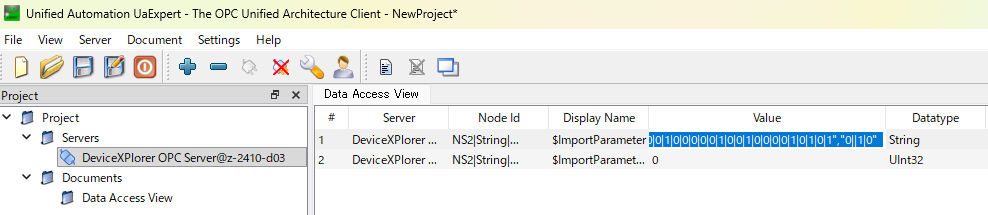
[Written Parameters]

- Device2 has been added
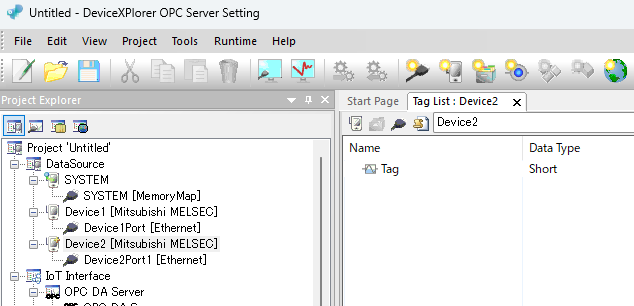
Example 2) Deleting a Specified Tag
Use SYSTEM.$DeleteTag.
Specify the target for deletion in the format [DeviceName.TagName].
* Note: This function cannot be used if the tag is currently in use or if the configuration tool and the runtime are connected.

Example 3) Saving the Project File
Use SYSTEM.$SaveProject.
By specifying the destination project file path, the current project file will be saved to the specified path.
System Tag List
Please refer to the following section of the manual.
User's Guide – Server Core Volume – 4.7.13 System Tags