

Products
- TOP
- Products
- DeviceXPlorer OPC Server
- SCADA Guide
- SCADA setting iFix3.5(OPC Client Driver)
SCADA setting iFix3.5(OPC Client Driver)
This page is an introduction for setting when our OPC Server is used with "iFIX 3.5" of Intellution. We are unable to answer details concerning setting of SCADA, so please make inquiries to the SCADA vendor or the sales outlets.
How to install OPC Client Driver
Install OPC Client Driver.
How to start iFIX
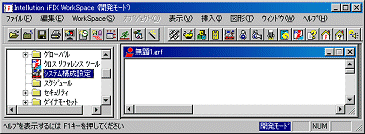
Select Program->iFIX->Intellution iFIX 3.5 from Start Menu. iFIX is started.
To configure OPC setting, click "System Configuration Setting" from the tree.
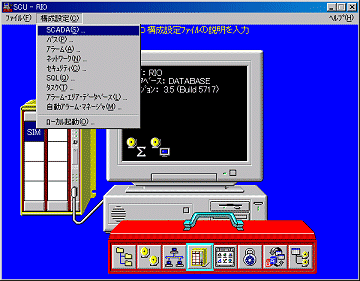
Select "SCADA" from "Composition Setting" menu of the system configuration utility.
SCADA Composition Setting
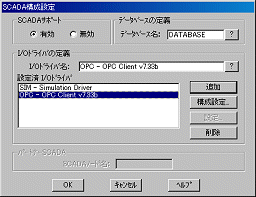
You cannot use OPC as default settings. Click "?" 0button on "I/O Driver Name".
And select "OPC - OPCClient" and click "Addition" button. OPC Client is displayed on "I/O Driver Name"
Next, click "Composition setting" button.
OPC Composition Setting
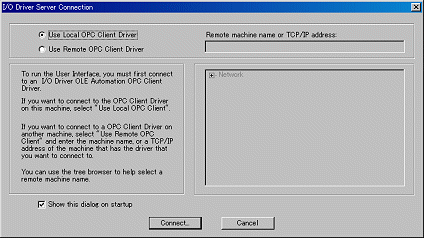
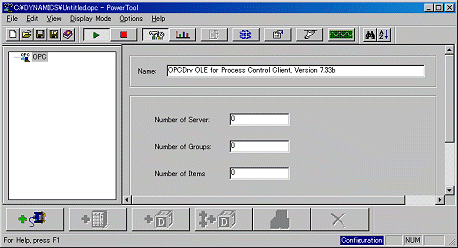
Select "Use Local OPC Client Driver" and click "Connect" button. OPC Power Tool is started.
Definition of OPC Server / OPC Group / OPC Item
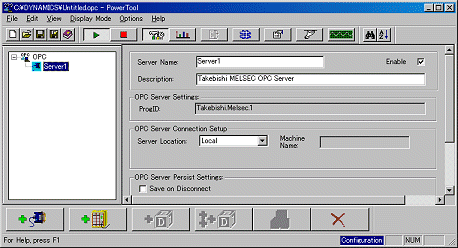
Click "Add Server" from "Edit" menu. The list of OPC Server is displayed.
Select an appropriate ProgID of OPC Server ("Takebishi.Dxp", "Takebishi.Sysmac", etc.). Set "ON" in check box of "Enable".
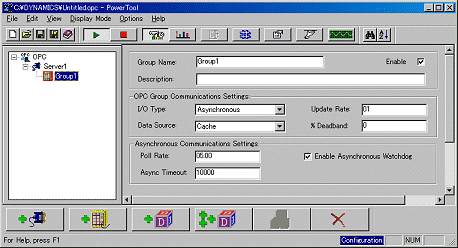
Click "Add Group" from "Edit" menu, and set "ON" in check box of "Enable".
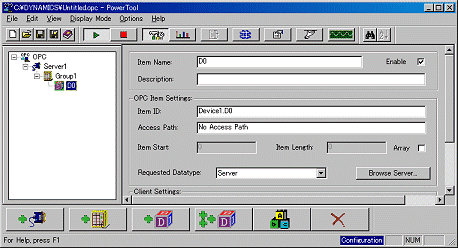
Click "Add Item" from "Edit" menu, and input "D0" in "Item Name" and input "Device1.D0" in "Item ID".
Set "ON" in check box of "Enable".
At last, select "Add Item to iFIX Database" from "Edit" menu, and add the tag information to iFIX.
Execution
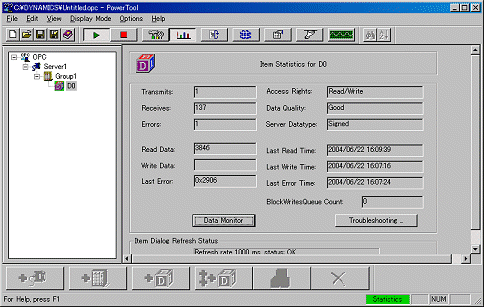
When you select "Stats Mode" from "Display Mode" menu, you can confirm communication status with OPC Server.